
Template
The Template panel lets you start from a ready-made design instead of a blank page. Search or scroll the templates, open one to see its details, and apply it in one of two ways.
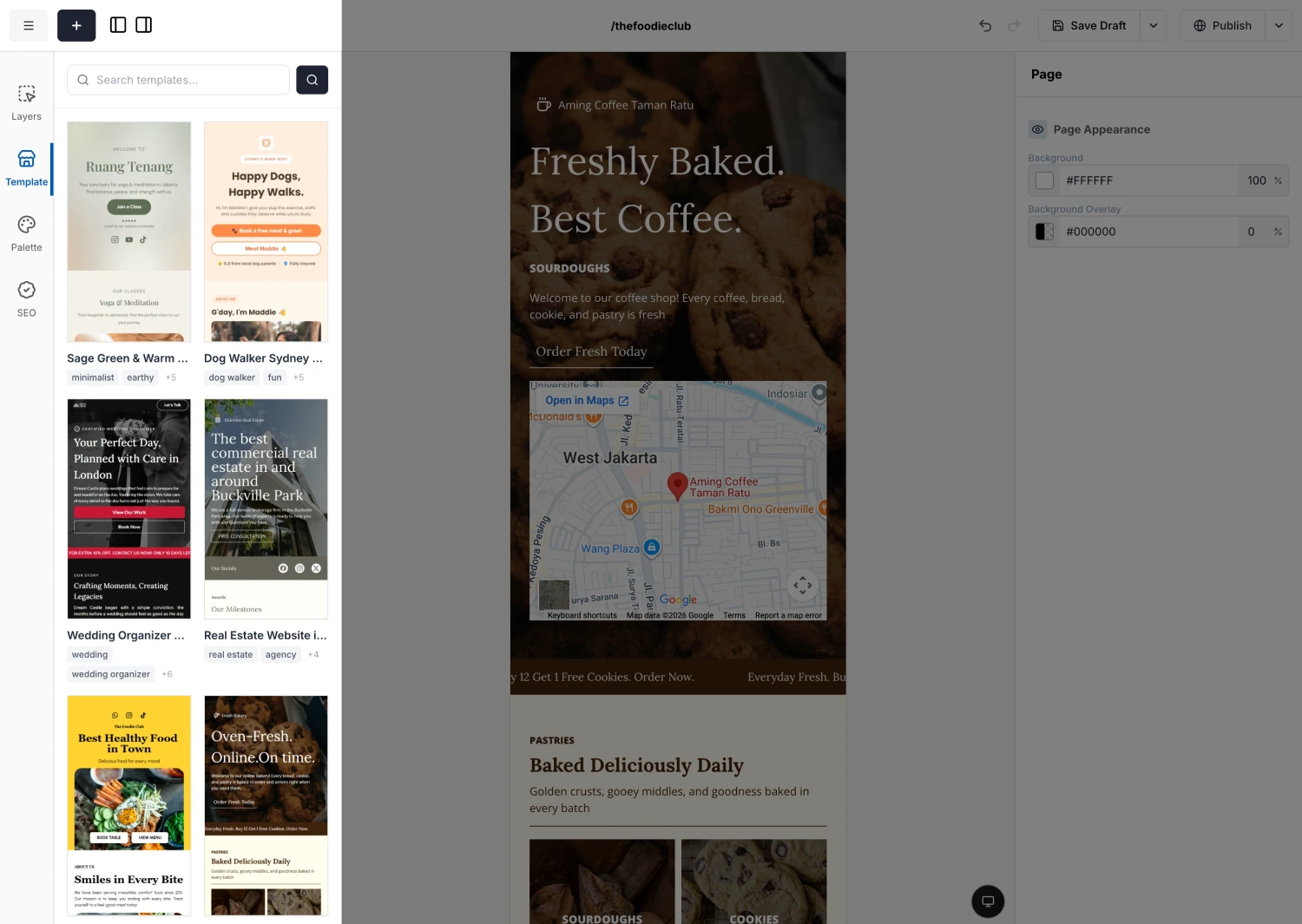
Apply the whole template
Use Apply All Sections to drop the entire template onto your page. This replaces your current content, so you will be asked to confirm first. You can undo it right after with Ctrl+Z.
Applying all sections clears what is already on the page. If you only want part of a template, use section-by-section below instead.
Apply one section at a time
Below the button, the template is broken into sections (Section 1, Section 2, and so on). Hover a section and click its + to add just that piece. A short "Where to apply this" chooser then asks where it should go. The options depend on what you have selected on the canvas:
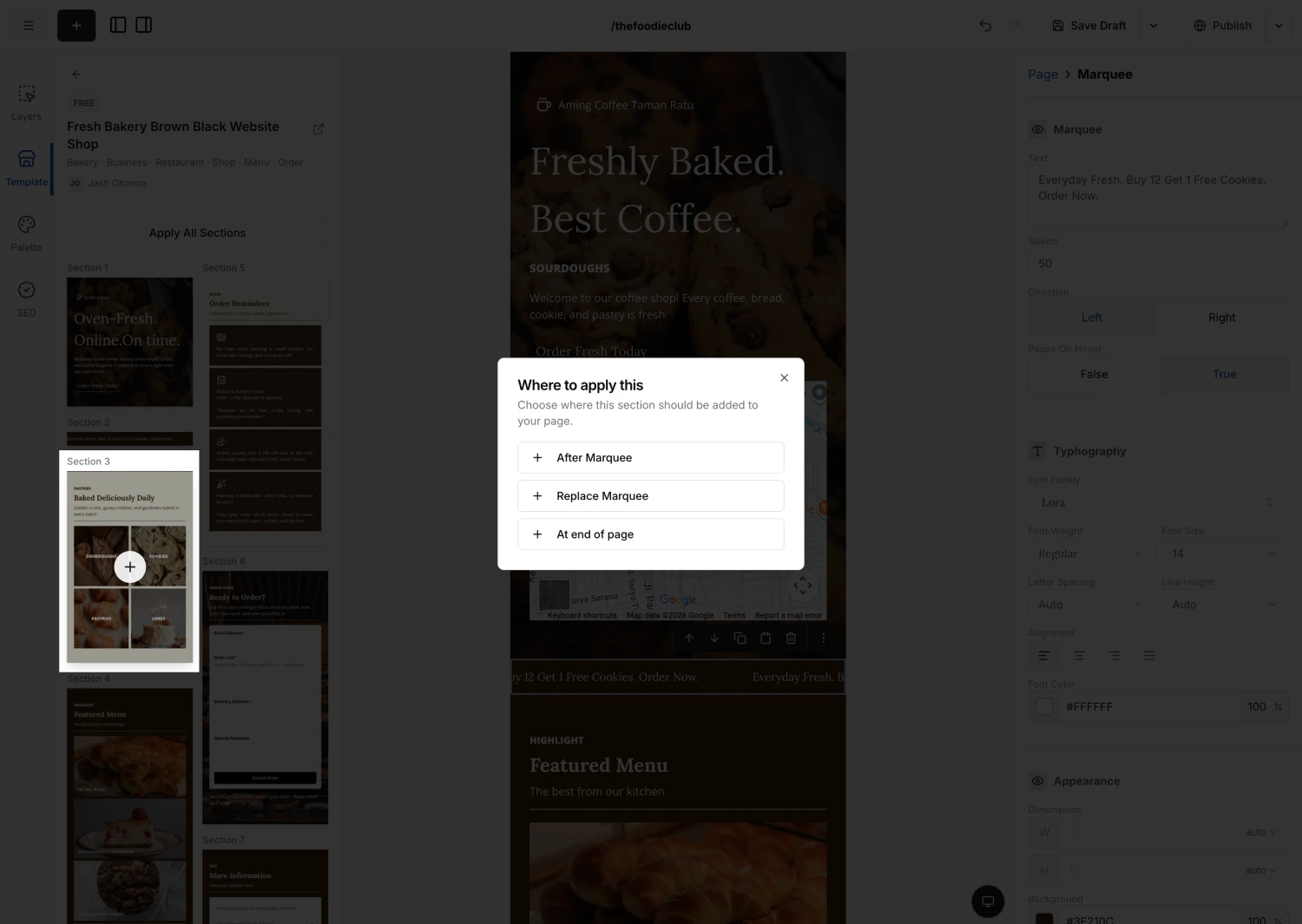
Applying a section changes your draft only. Save the draft to keep it, and remember you can undo with Ctrl+Z.