
Moving Components Around
Every block has an action bar that appears when you select it. This is where all the moving and copying happens. Select a block on the canvas to see it.
Make sure you selected the right block
When one block sits inside another, it is easy to select the wrong one, because they can cover the exact same spot. A common case: a Container wrapping an Image just to make it clickable. The Image fills the Container edge to edge, so a click that feels like it picks the Container actually picks the Image inside it.
That leads to confusing results:
- Move up or down seems to do nothing. You are moving the Image, but it is the only thing in the Container, so it has nowhere to go.
- Insert adds in the wrong place. A new block lands next to the Image (inside the Container), not next to the Container as you expected.
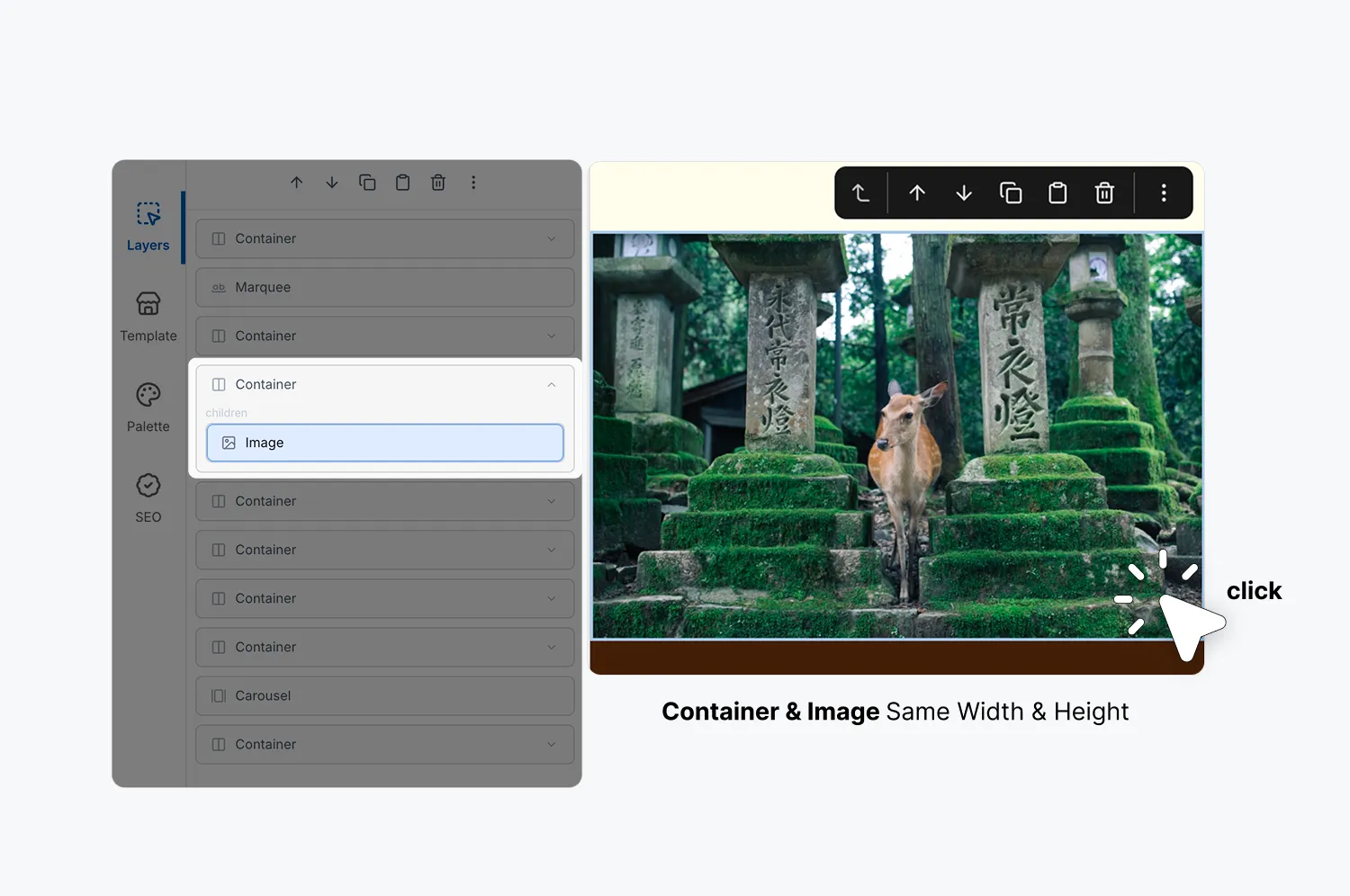
If an action is not doing what you expect, check what is actually selected:
When you want to move or add something next to the group, select the Container first, not the block inside it. The breadcrumb and Layers are the reliable way to be sure.
The action bar buttons
These buttons sit directly on the action bar:
The more menu
Open the three-dots menu on the action bar for the full set of actions.
Actions
Copy and paste
Cut the block, select the Container you want it in, then Paste Inside. That is the quickest way to move a block from one group into another.