
Page Settings
The Settings page holds everything about your page that is not part of the design itself: its name, its web address, SEO details, and more. Open it from your page's dashboard. Each section has its own Save Changes button, so save the section you edited.
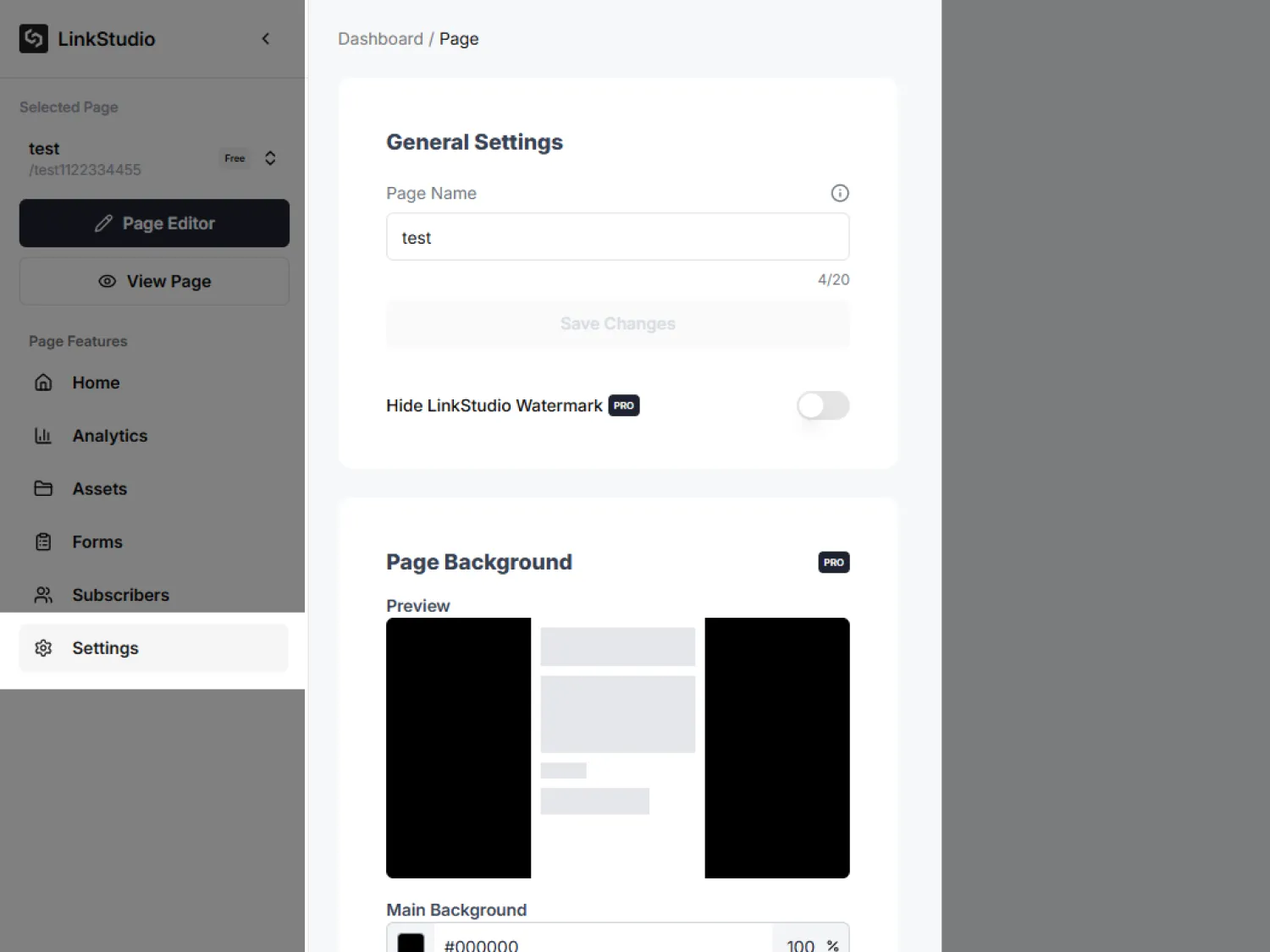
Some sections are marked PRO. They are available on a paid plan; on the free plan you will see an upgrade prompt.
General
Page Background (PRO)
Set a background for the whole page: a solid colour, an image, or a gradient, with an optional overlay on top. A live preview shows the result.
SEO Information
Controls how your page looks when it is shared or found in search. Changes can take a while to appear on other platforms.
This section sets your page's metadata (title, description, icon). The SEO tab inside the editor is a separate tool that audits your headings and image alt text. See SEO (Feature Rail).
Page Link (PRO)
Custom Domain (PRO)
Point your own domain at your page. After entering the domain you will see the DNS records to add at your domain provider (an A record, and a TXT record if verification is needed), plus a Verify Domain button to confirm the setup. For the full walkthrough from buying a domain to going live, see Set Up a Custom Domain.
Contact Information (PRO)
Analytics & Tracking (PRO)
Connect your own Google Analytics 4 and Meta Pixel so a page's traffic flows into your own analytics and ad accounts. Tracking only fires after a visitor accepts cookies on the live page. For the full walkthrough, including per-button click tracking and how consent works, see Analytics & Tracking.
G-XXXXXXXXXX), found in Google Analytics under Admin > Data Streams.Billing
Your plan and subscription details, including transaction history.
Transfer Ownership
Hand your page over to another person by their email. This is permanent and asks you to type a confirmation phrase before it goes through, because you will lose access afterwards.